Pika Art Lip Sync
Pika Art has released a new feature that automatically syncs lips in your videos. This is especially helpful for animation projects, where manual lip syncing can take a lot of time.
If you want to use the lip sync feature in your own videos, follow this guide to learn how.
The tool works well for both stylized animation and realistic visuals, making lip syncing simpler and faster.
Is Pika Art Lip Sync Perfect?
Not completely—Pika Art’s lip sync tool has some limitations, but it’s still one of the simplest ways to add synced lips to your videos.
Before this feature existed, creators often relied on tools like Wave2Lip. That process meant uploading your video to Wave2Lip, then exporting it from a third-party site like Hugging Face.
The results were usually lower in quality, so many had to run the video through an AI upscaler such as Topaz Video with the Iris model to improve resolution. Overall, it was a slow and inefficient workflow.
Pika Art AI Animation Video Guide
Now, Pika Art’s new tool provides a simpler approach, different from platforms like D-ID. While D-ID animates still images, it doesn’t offer the kind of cinematic camera movement or environmental detail that Pika Art can produce.
How to Use Pika Art for Lip Sync?
Follow these steps: open Pika Art and choose the image or video you want to use.
Step 1: Uploading Your Asset
Choosing an Image or Video:
You can upload an image or a video. If you choose an image, the synced video will be limited to 3 seconds. For longer sequences, upload a video instead.
Downloadable Assets:
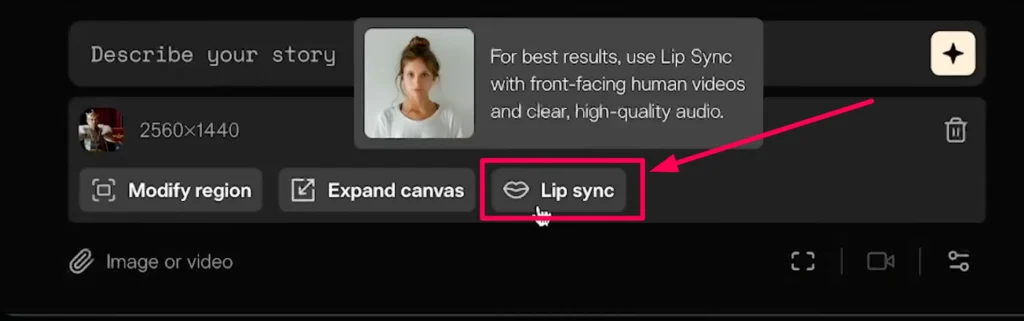
Step 2: The Lip Sync Button
After uploading your footage, click the “Lip Sync” button. This will open a new window where you can:
Type Text or Upload Audio:
You can type your text and choose a voice, or upload an audio file you’ve already made.
Pika Art uses the ElevenLabs API for voice generation, which provides a large selection of voices you may recognize.
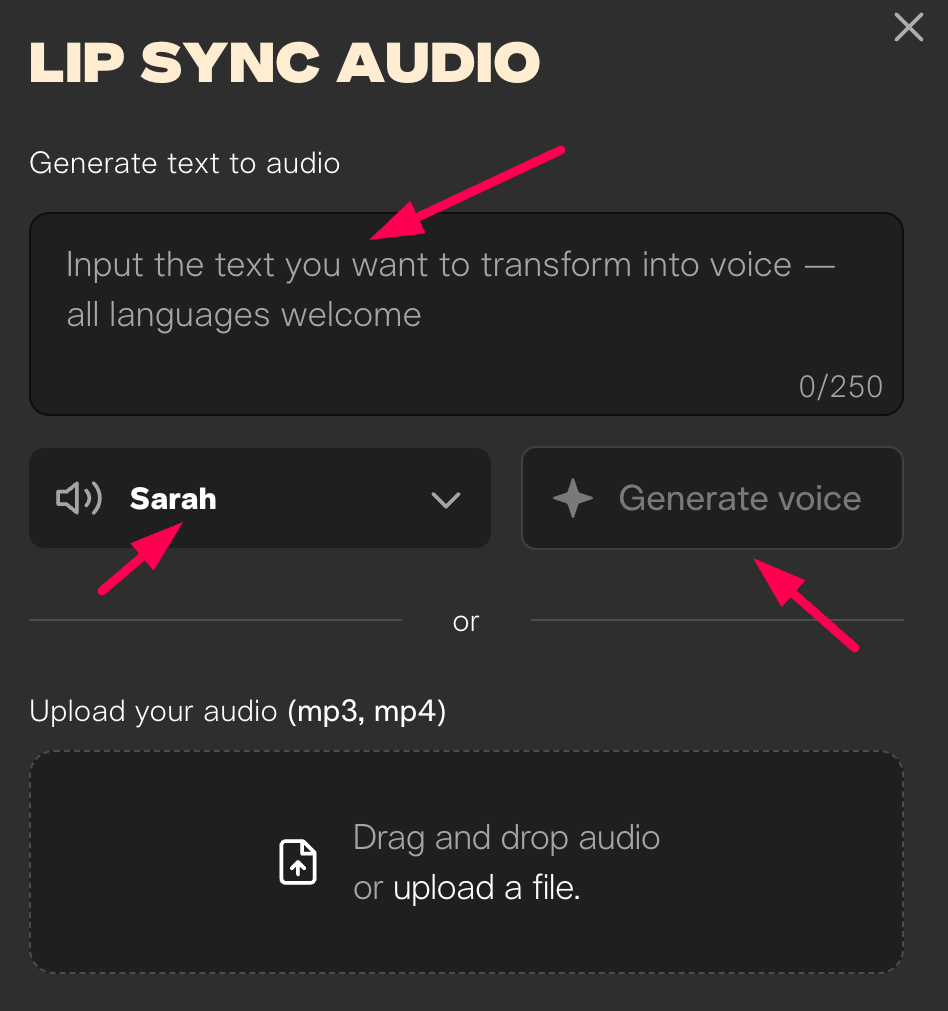
In this example, we’re uploading a voice created using ElevenLabs.
After uploading both your video and audio, click “Attach and Continue.” The tool will then process the video and create the lip sync.
Generation Time:
The process usually takes about a minute. Once it’s done, you can preview the result. The lip syncing is accurate and works especially well with this 3D animation style.
Advanced Example
Here’s another example: I made this image in MidJourney using a 3D animation style. I prompted it for a surprised expression and added a negative prompt to avoid any talking in the base image.
The audio for this example says:
“I don’t think that was chocolate.”
To sync it:
Click “Attach and Continue.” the generation is done, we can play it back:
Click the “Lip Sync” button.
Upload the video.
Upload the audio file with the voice.
Enhancing Quality of Pika Art Video using Topaz Upscaling
To improve the quality of these renders, you can use Topaz Video for upscaling AI-generated videos.
Step 1: Drag and Drop the Video
Drop your video file into Topaz Video, then choose the output resolution. Full HD (1080p) works for most projects, but you can upscale to 4K for larger screens.
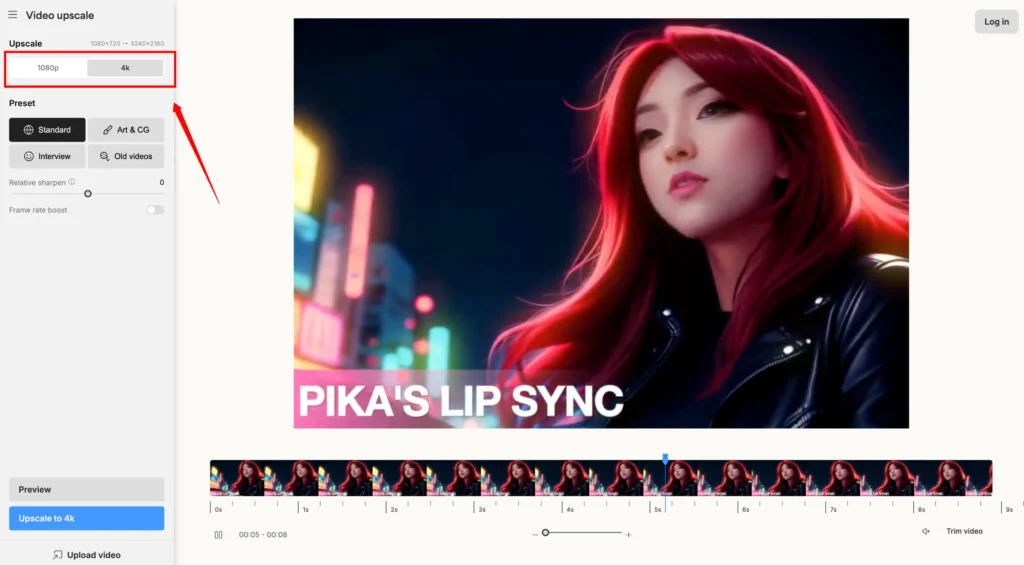
Step 2: Choose the AI Model
Try different AI models to see which works best. The Protus model is generally a good choice, while the Iris model is better for low-resolution or face-focused footage.
Step 3: Adjust Settings
Lower the Recover Detail setting to maintain the highest quality.
When you’re happy with the settings, click Export to upscale and finalize your video.
Final Result
The result looks much better. There’s still slight distortion around the eyebrows, and the lips move a little unnaturally in some spots, but overall the quality is noticeably improved. In general, lip sync works best when the subject is positioned farther from the camera.
Limitations of Pika Art’s Lip Sync Tool:
This tool works well for basic use, but it’s not without flaws. When the subject is at an angle, you may notice distortion, especially around the lips, where odd lines can appear. It’s a good option for quick lip syncing, but the results aren’t perfect.
Conclusion
Pika Art’s lip sync tool provides a straightforward way to add lip syncing to videos, especially for 3D animation styles. While it has some limitations—such as side angles and occasional facial distortions—it’s a solid starting point for quick lip sync projects.

